Learner Licence Guide
Apply for Learning Driving Licence
Ministry of Road Transport
Apply for Learner Licence
Visit the Sarathi portal
Select your State from the dropdown
Close any popup if it appears
#Navigate to Application
Click Apply for Learner Licence
Read the instructions carefully
Click Continue
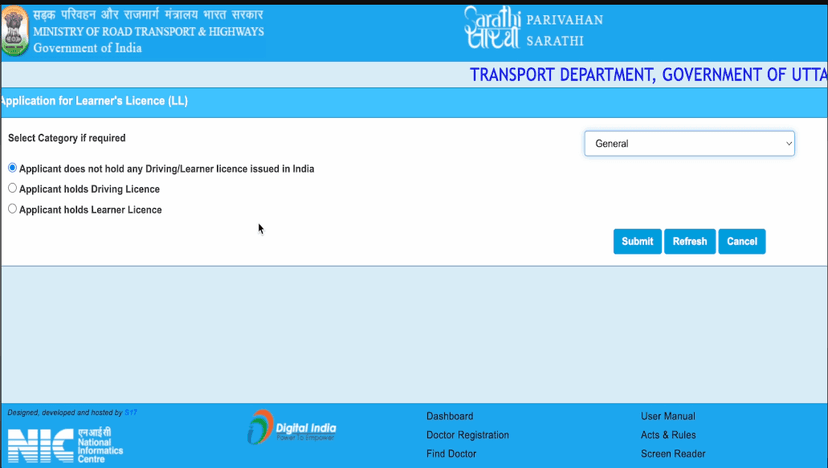
#Select Category
Select from dropdowns:
- Category: Select General
- Licence Status: Select Applicant does not hold any Driving / Learner Licence
Click Submit to proceed
Choose Application Method
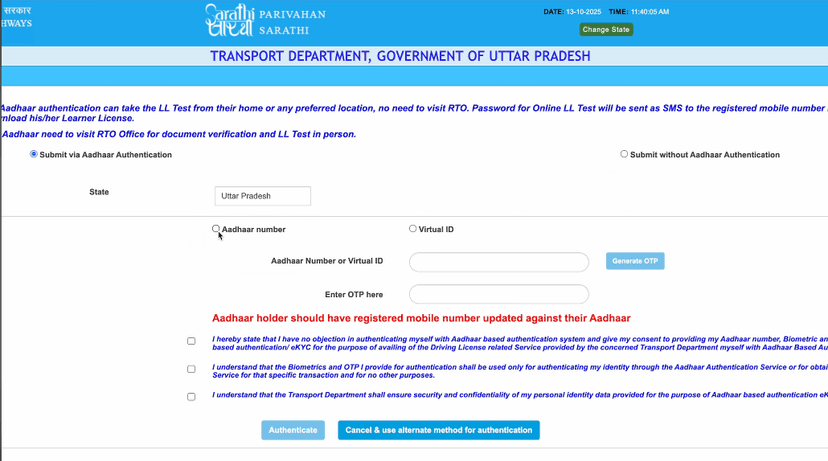
#With Aadhaar Authentication (Recommended)
Benefits:
- No need to visit RTO office
- Take LL test from home
- Download Learner Licence online
#Without Aadhaar Authentication
You will need to visit RTO office
Choose this only if Aadhaar is not linked to mobile
#Aadhaar Verification
Click Submit after selecting Aadhaar option
Select Aadhaar Number and enter your number
Click Generate OTP
Enter OTP received on your mobile
Select all three checkboxes
Click Authenticate
#Auto-filled Data
Your details will be fetched from Aadhaar
Verify all details are correct
Click Proceed to continue
Personal Details
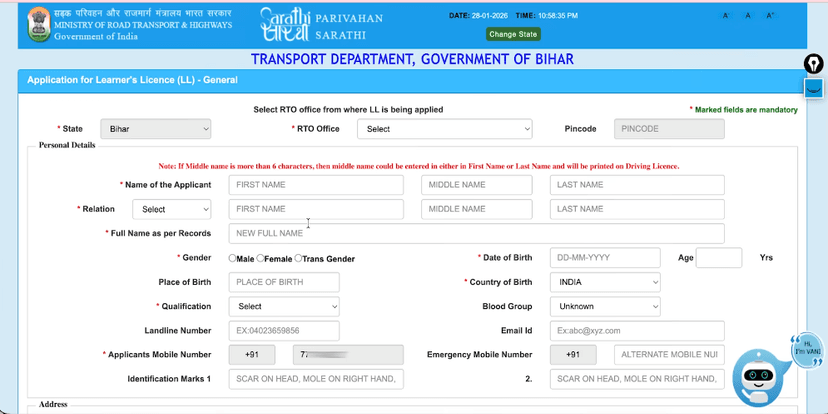
Most details are auto-filled from Aadhaar
Verify all information carefully
#RTO Office
Confirm your nearest RTO office
#Personal Information
Fill/Select:
- Relation: Father/Mother (name auto-filled)
- Gender: Male/Female/Transgender
- Place of Birth
- Qualification: Select from dropdown
- Blood Group: Select Unknown if not known
#Contact Details
Mobile Number: Must be Aadhaar-linked number
Email ID: Enter valid email
Identification Mark: Optional, can leave blank
#Address Details
Present Address is auto-filled from Aadhaar
Select Tehsil from dropdown
Enter Village/Town name
Duration at present address:
- Select Since Birth if born here
Permanent Address:
- Check Same as Present Address if same
Select Class of Vehicles
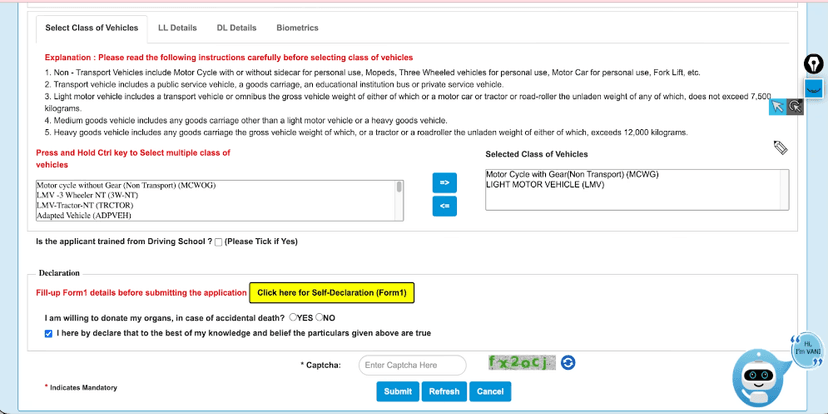
#Select Vehicle Type
Choose one or both:
- LMV (Light Motor Vehicle) - for car
- MCWG (Motor Cycle with Gear) - for bike
Click arrow button to move to Selected box
#Driving School Training
Select Yes if trained at registered school
Select No if no formal training
#Self Declaration (Form 1)
Click Self-Declaration (Form 1) link
Answer all questions with Yes or No
#Submit Application
Tick I hereby declare checkbox
Tick checkbox confirming Aadhaar photo is latest
Enter captcha code
Click Submit
#Application Reference
You will receive an Application Reference Slip
Note down your Application Number!
Upload & Fee Payment
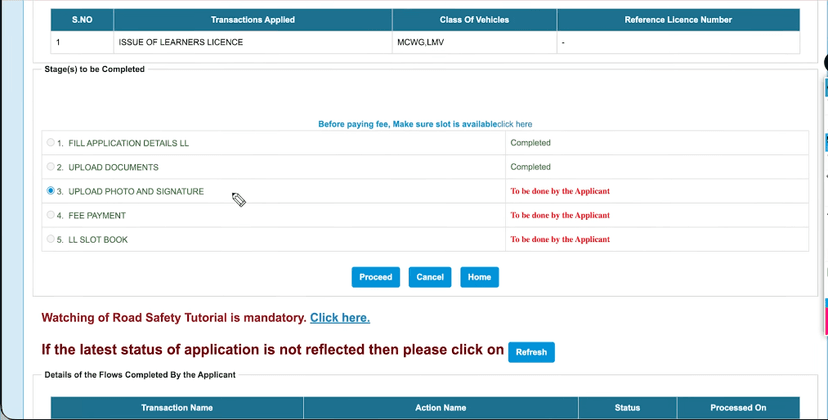
#Application Status
Enter Application Number and Date of Birth
Enter captcha code
Click Submit
#Upload Photo & Signature
Click Proceed
Photo is fetched from Aadhaar automatically
Upload your signature image
Click Upload and View Files
Click Save Photo and Signature
#Proceed to Payment
Click Next
Enter captcha and click Submit
Click Proceed to fee payment
#Fee Payment
Fee is around ₹200-₹400 (varies by state)
Select a payment gateway
Enter captcha and click Pay Now
#Complete Payment
SBI payment gateway will open
Payment options:
- UPI (recommended)
- Net Banking
- Debit/Credit Card
Complete payment and wait for confirmation
Receipt & Road Safety
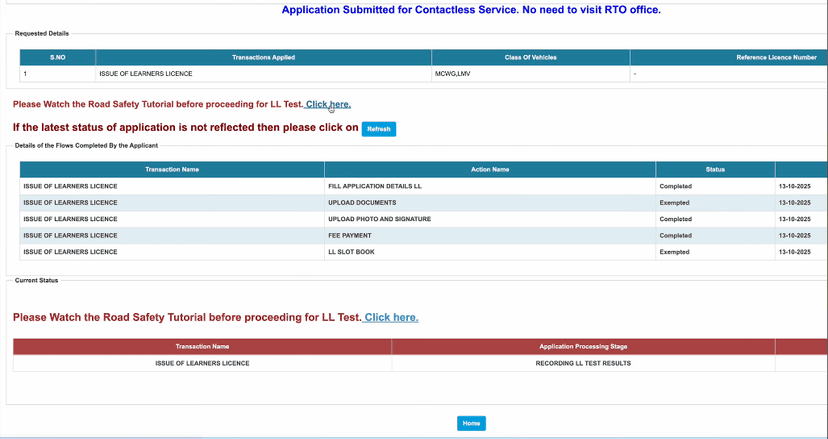
#Save Payment Receipt
Print and save the payment receipt
#LL Slot Booking
With Aadhaar eKYC:
- Slot booking is automatic
- No RTO visit needed
- Test is online from home
Without Aadhaar eKYC:
- Book slot using calendar
- Visit RTO with documents
- LL issued at RTO
#Road Safety Tutorial
Go to Sarathi home page
Click Application Status
Enter Application Number and DOB
You will see a message to watch Road Safety Tutorial
Click the link to start
Enter OTP received on mobile
Select video language
#Watch Tutorial
Play the video completely
Do not skip, close, or minimize
After completion, tick the confirmation checkbox
Click Submit to proceed to LL test
LL Test & Download
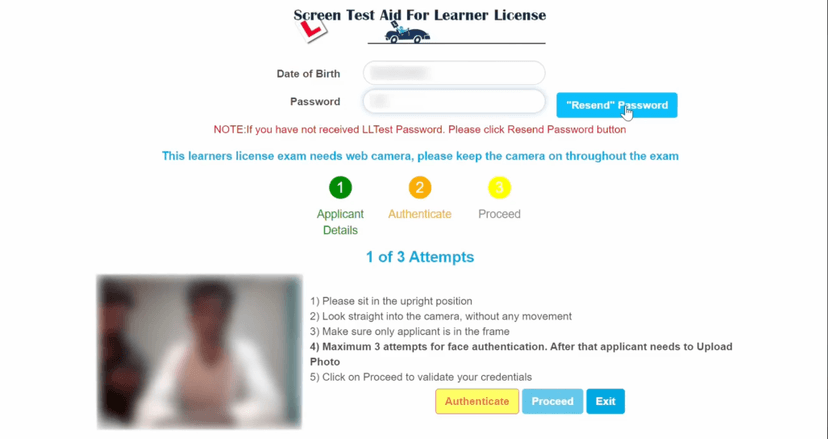
#Start Online LL Test
Go to Sarathi home page
Click Online LL Test (Slot)
Enter Application Number
Enter captcha and click Submit
#Download Smart Lock Software
Download and install Smart Lock software
Use laptop/desktop for better experience
#Login & Authenticate
Open Smart Lock application
Enter Application Number and captcha
Enter Date of Birth
Enter test password (received via SMS)
Ensure camera and microphone are working
Click Authenticate and Proceed
#Take the Exam
Read all instructions carefully
Test contains MCQs on traffic rules & signs
Click Continue to start timer
Answer all questions
Review answers before submitting
Click Submit
#Download Learner Licence
Result is shown immediately
If you pass:
- Go to Sarathi home page
- Click Download Learner Licence
- Enter OTP received on mobile
- Download and print your LL
Done! Form Complete 🎉
Follow all the steps above and your form will be successfully submitted.
Apply Now