MPPSC Exam Guide
Madhya Pradesh Public Service Commission State Service Exam
MPPSC
Start Application & Fill Basic Details
#Accept Declaration
Visit the official MPPSC application website
Click on the "I Declare" checkbox
Open and read the two PDF documents provided *(required to continue)*
After opening both PDFs, click "I Accept"
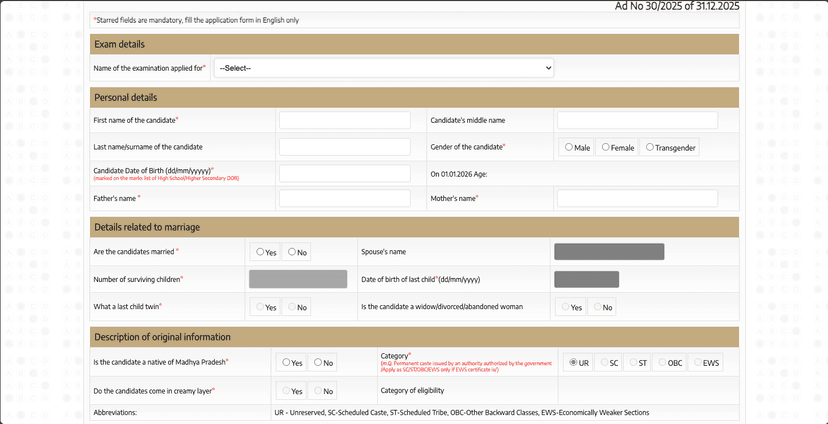
#Select Exam Details
Select one option from dropdown:
- Both
- State Service Preliminary Examination 2026
- State Forest Service Preliminary Examination 2026
Select Graduation Degree:
- Engineering Graduate
- Science Graduate
- Technology Graduate
Enter Name of Branch / Subject of Graduation Degree
#Fill Personal Details
Enter the following:
- First Name *(Mandatory)*
- Middle Name *(if any)*
- Last Name / Surname
Gender:
- Male
- Female
- Transgender
Date of Birth in DD/MM/YYYY format
Age will be auto-calculated based on DOB
Father's Name *(Mandatory)*
Mother's Name *(Mandatory)*
#Details Related to Marriage
Are you married? – Yes / No
Spouse's Name *(if married)*
Number of surviving children
Date of birth of last child *(if applicable)*
Was the last child a twin? – Yes / No
Are you a widow / divorced / abandoned woman? – Yes / No
#Original Information & Category
Are you a native of Madhya Pradesh? – Yes / No
Select your category:
- UR – Unreserved
- SC – Scheduled Caste
- ST – Scheduled Tribe
- OBC – Other Backward Classes
- EWS – Economically Weaker Section
Do you fall under Creamy Layer? – Yes / No *(if applicable)*
Disability, Other Details & Ex-Serviceman Information
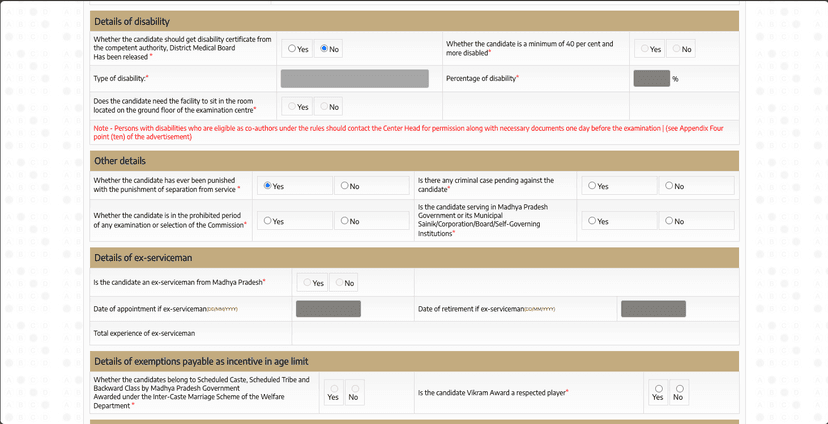
#Details of Disability
Disability Certificate Issued? – Yes / No
Is disability 40% or more? – Yes / No
Select Type of Disability from the list
Enter Percentage of Disability
Need ground floor seating? – Yes / No
#Other Details
Punished with separation from service? – Yes / No
Criminal case pending? – Yes / No
In prohibited period of Commission exam? – Yes / No
Currently serving in MP Government / Municipal body? – Yes / No
#Ex-Serviceman Details
Ex-serviceman from MP? – Yes / No
If Yes, enter:
- Date of Appointment
- Date of Retirement
- Total Experience
#Age Relaxation / Exemptions
Inter-Caste Marriage Scheme Benefit? – Yes / No
Vikram Award Player? – Yes / No
Educational Qualification & Service Details
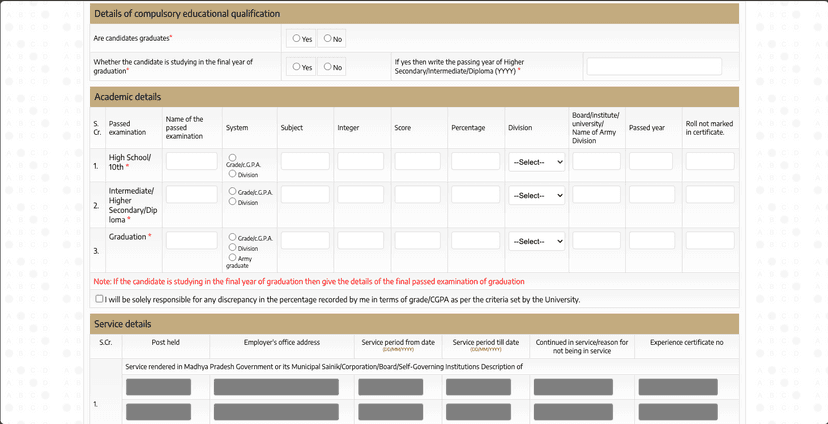
#Compulsory Educational Qualification
Are you a Graduate? – Yes / No
Are you studying in final year of graduation? – Yes / No
If studying in final year, enter passing year of Higher Secondary / Intermediate / Diploma (YYYY)
#Academic Details
Fill details for:
- High School (10th)
- Intermediate / 12th
- Graduation
Fields to fill for each:
- System – select Grade/CGPA or Division
- Subject – select your subject/stream
- If Division selected – enter obtained marks and total marks, percentage will be auto-calculated
- Score / Percentage – enter exactly as per marksheet
- Board / University Name – enter full official name
- Passed Year – as mentioned in marksheet
Tick the declaration checkbox confirming percentage accuracy
#Service Details
If applicable, fill:
- Post Held – your official designation
- Employer's Office Address – full department name and location
- Service Period From / Till – exact dates (DD/MM/YYYY)
- Continued in Service / Reason for not being in service
- Experience Certificate Number – if issued by department
If not in government service, leave this section blank
Bank Details, Address & Exam City
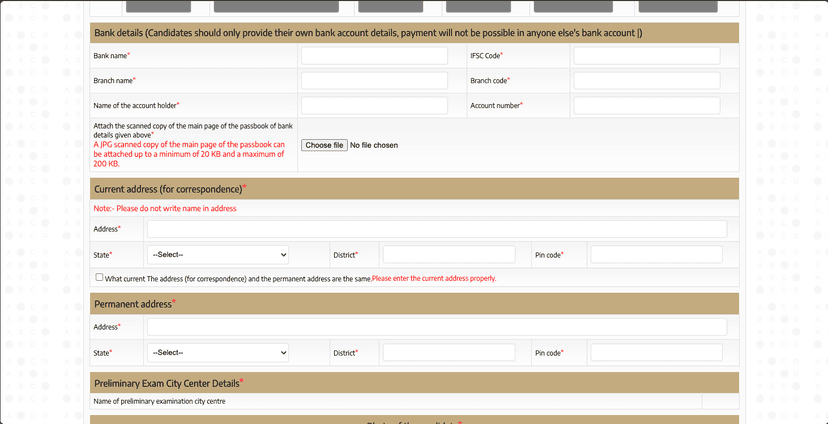
#Bank Details
Enter the following:
- Bank Name – full official name
- IFSC Code – check from passbook or bank website
- Account Number – double-check before proceeding
- Name of Account Holder – must match your application name
Upload scanned copy of first page of passbook (JPG, 20 KB to 200 KB)
#Current Address (For Correspondence)
Do not write your name in the address field
Enter complete address clearly
State, District, Pin Code must match correctly
Upload address proof document (JPG, 20 KB to 200 KB)
If current and permanent address are same, tick the checkbox provided
#Permanent Address
Fill only if different from current address
Enter full permanent address with correct State, District, Pin Code
Upload permanent address proof document (JPG, 20 KB to 200 KB)
#Preliminary Exam City Center
Select the city where you want to appear for the preliminary exam
Upload Photo, Contact Details & Final Declaration
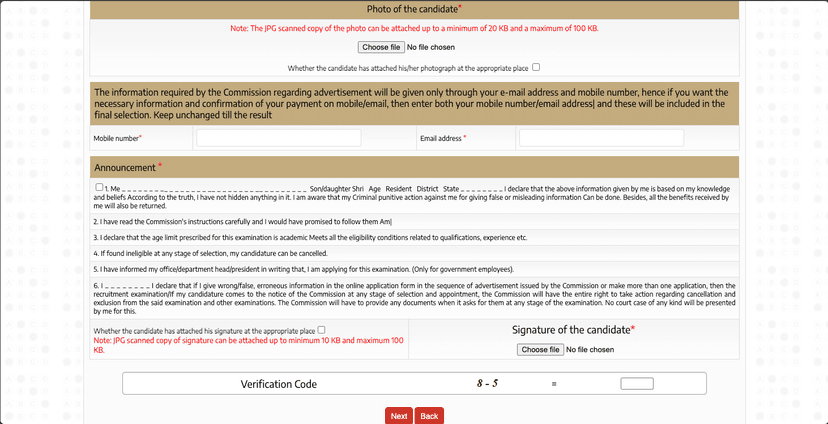
#Upload Photograph
Upload recent passport-size photo (JPG, 20 KB to 100 KB)
Face should be clear with plain background
Tick the checkbox confirming photo is uploaded correctly
#Contact Details
Enter Mobile Number
Enter Email Address
#Declaration
Read all declarations carefully and tick confirming:
- All information provided is true
- False information can cancel your candidature
- You meet eligibility and age conditions
- You have read commission instructions
- If government employee, you have informed your department
- Commission can cancel application if incorrect details found
#Upload Signature
Upload scanned signature (JPG, 10 KB to 100 KB)
Use clear signature – black/blue ink on white paper
Tick the checkbox confirming signature is uploaded correctly
#Verification Code
Solve the simple math captcha and enter the correct answer
#Final Submission
Click Next and review the full application carefully
Click Proceed to Payment
#Payment
On the payment gateway page, select payment method *(UPI recommended)*
Complete the payment of exam fees
Save the payment confirmation receipt
Done! Form Complete 🎉
Follow all the steps above and your form will be successfully submitted.
Apply Now